 admin
admin
When your typing suddenly stops working, it can be incredibly frustrating, but knowing how to unlock a keyboard is a simple skill that can save your day. Whether you have accidentally enabled a lock feature or a software glitch has caused the device to become unresponsive, there are several straightforward steps you can take to regain control. Most keyboard issues are minor and can be fixed in seconds without needing professional repairs. By understanding the common causes of input locks and learning the right keyboard shortcuts, you can quickly resume your work and keep your digital life running smoothly.
| Feature | Details |
| Primary Goal | How to unlock a keyboard easily |
| Common Fix | Check for Filter Keys or Num Lock |
| Mac Method | Adjusting Mouse Keys in Accessibility |
| Hardware Tip | Unplug and reconnect the device |
| Last Resort | Device Manager driver update |
Identifying Why Your Keyboard Is Locked
Before you panic, it is important to identify if the issue is software-related or a physical lock. Often, users accidentally press key combinations that enable accessibility features designed to assist those with limited mobility. If you are wondering how to unlock a keyboard, first check if your keys are typing symbols instead of letters, or if there is no response at all. Being aware of these common “accidental” lockouts—like Filter Keys or sticky keys—is the first step toward a quick resolution. Once you identify the likely culprit, the fix is usually just a few keystrokes away.
The Filter Keys Shortcut Fix
One of the most common reasons Windows users need to unlock a keyboard is the unintentional activation of Filter Keys. This accessibility feature tells the computer to ignore repeated or brief keystrokes. You can usually toggle this off by holding down the right Shift key for eight seconds until you hear a chime or see a notification on your screen. This feature is intended for users who have tremors, but it often gets turned on by accident during intense typing sessions. Disabling it instantly restores your normal typing speed and responsiveness, making it a very common solution.
Checking the Num Lock Status
Sometimes, the issue isn’t that you are locked out, but that your number pad has switched functions. If the right side of your keyboard isn’t typing numbers, you may need to unlock a keyboard numerical pad by pressing the “Num Lock” key. When this key is off, those keys might act as navigation arrows instead of numbers. Simply look for the small light on your device that indicates if Num Lock is active. Tapping the key should toggle it back, allowing you to use your keypad for numerical input once again, which is essential for data entry tasks.
Troubleshooting Function Key Locks

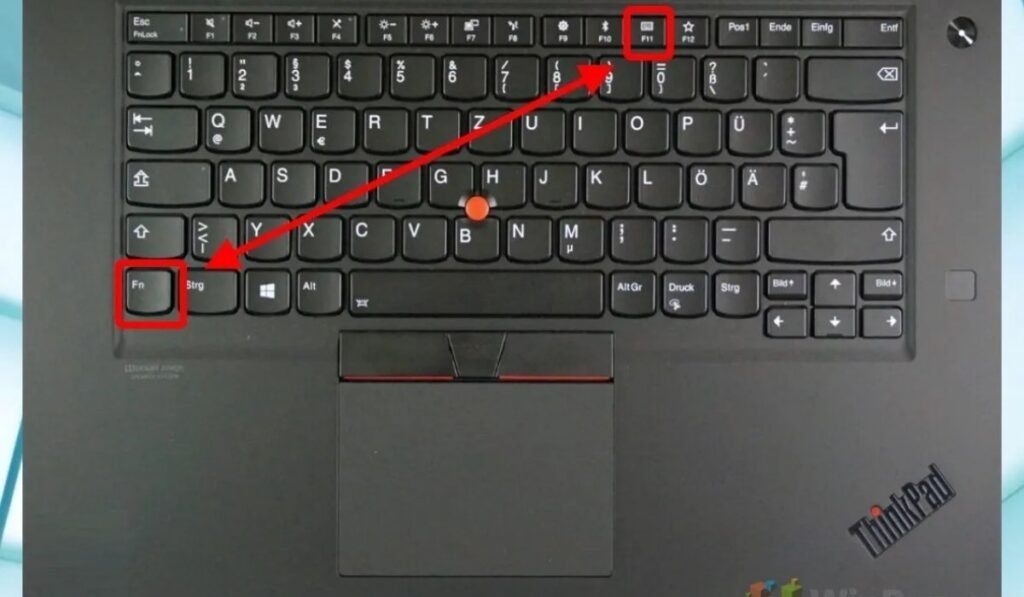
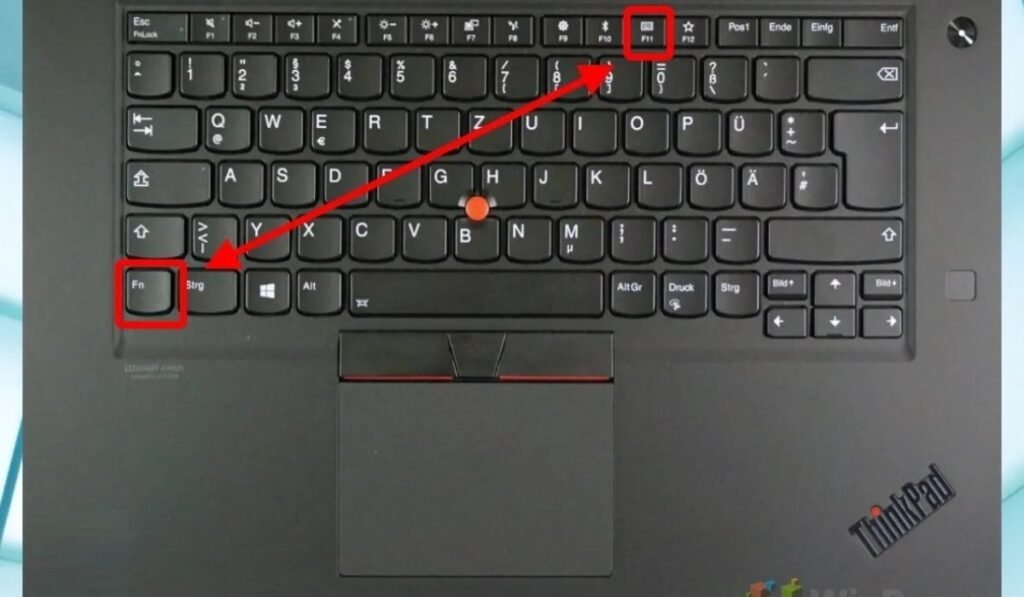
Many modern laptops feature a “Function Lock” (Fn Lock) that changes the behavior of your top-row keys. If you need to unlock a keyboard top-row functionality, try pressing the “Fn” key in combination with “Esc” or the specific key that has a padlock icon on it. When the Fn Lock is active, keys like F1 through F12 might be controlling volume or brightness instead of their standard software commands. Toggling this lock off restores the default behavior of your keys, Unlock a Keyboard which is critical for using specific applications or shortcuts that rely on traditional Function key mappings for their operations.
Dealing with Mouse Keys
On Mac systems, a frequent cause for needing to unlock a keyboard is the accidental activation of Mouse Keys. This accessibility setting allows the keyboard to control the mouse cursor, effectively disabling standard text entry. To fix this on a Mac, you can press the Option key five times, or navigate to System Settings > Accessibility > Pointer Control and ensure “Mouse Keys” is turned off. Once disabled, your keys will return to their normal function, allowing you to type freely. Unlock a Keyboard This is a common point of confusion for new Mac users experiencing sudden keyboard input issues during their work.
Unplugging and Reconnecting the Device
For external keyboards, a simple physical reset is often enough to unlock a keyboard that has become unresponsive. Unplug the USB cable from your computer, wait about ten seconds, and then plug it back in—ideally into a different USB port. This forces the operating system to re-recognize the hardware and reload the necessary drivers. If you are using a wireless keyboard, toggle the power switch off and on, or re-pair it via your Bluetooth settings. Often, a simple physical handshake is all it takes to clear out a temporary hardware communication error effectively.
Updating Keyboard Drivers in Windows
If you are still unable to unlock a keyboard through simple shortcuts, the issue might be a corrupted driver. Right-click the Start button and select “Device Manager.” Find “Keyboards” in the list, right-click your device, and select “Update driver” or “Uninstall device.” If you uninstall it, restart your computer, and Windows will automatically reinstall the driver when it reboots. This “clean slate” approach often resolves deep-seated software conflicts that prevent your keys from communicating with the OS, ensuring that your hardware is properly recognized and functioning at its full capacity for your typing needs.
Clearing Physical Debris Under Keys
Sometimes a keyboard isn’t “locked” in the software sense—it is just physically stuck. If specific keys are unresponsive, you might need to unlock a keyboard by cleaning out dust, crumbs, or debris that has fallen beneath the keycaps. Turn your keyboard upside down and give it a gentle shake. You can also use a can of compressed air to blast away hidden particles. While this is a physical maintenance step, it is vital to remember that a keyboard that is “jammed” with dirt will behave as if it is locked, preventing your input from reaching the computer.
Using the On-Screen Keyboard
If you are desperate to unlock a keyboard and need to type immediately, use the built-in virtual keyboard. In Windows, you can search for “On-Screen Keyboard” in your search bar, and on Mac, go to Accessibility > Keyboard > Viewer. This tool allows you to type using your mouse. It is an excellent temporary workaround that gives you full access to your system while you troubleshoot the hardware issues. Being able to access your computer this way ensures you don’t lose progress on important work while you are still in the process of resolving the primary input lock issue.
Checking for Language Settings Conflicts
Did you accidentally switch your keyboard language? This can make you feel like you need to unlock a keyboard because the keys aren’t producing the expected characters. Look at the bottom right of your Windows taskbar or the top menu bar on Mac to see if you have inadvertently switched to a different language layout, such as Dvorak or French. If the layout is wrong, simply click the language icon and switch it back to your preferred default. This is a common error that makes typing feel impossible even when the hardware is perfectly functional and healthy.
Disabling Sticky Keys
Sticky Keys is another accessibility feature that can be mistaken for a locked device. To unlock a keyboard that has Sticky Keys enabled, press the Shift key five times in a row, or go into your Accessibility settings to toggle it off. Sticky Keys allows users to press one key at a time for complex shortcuts (like Ctrl + Alt + Delete), but it can be incredibly confusing if you don’t realize it is on. Turning this feature off returns your keys to their normal, instantaneous response, ending any frustration caused by the system “holding” keys that you have already released.
Scanning for Malware
It is rare, but occasionally malware can be the reason you need to unlock a keyboard. Some malicious software is designed to disable input devices to frustrate users or prevent them from accessing security settings. If you suspect your computer is behaving strangely, run a full system scan with your preferred antivirus software. Clearing out potential threats is an essential step to ensure that your system remains under your control. Security is a priority, and ensuring that no unauthorized software is intercepting or locking your input is a critical part of maintaining a healthy computing environment.
Checking Power Management Settings
On laptops, power management can sometimes put your input hardware to “sleep” to save battery. To unlock a keyboard in this scenario, ensure your device has enough charge or is plugged into a power source. You can also check Device Manager, right-click your keyboard driver, select Properties, and then check the “Power Management” tab. Ensure the option “Allow the computer to turn off this device to save power” is unchecked. This prevents your system from deactivating your typing hardware during usage, which can be a subtle but common cause of input freezing on older laptop models.
Resetting System Preferences
If you are on a Mac and standard fixes fail, you might need to reset your SMC or NVRAM, which handle low-level hardware settings. While this is more advanced, it is a proven way to unlock a keyboard that seems completely dead at the hardware level. These resets clear out temporary data that might be causing communication errors between the logic board and your input hardware. While it sounds complex, Apple provides clear guides for each device model, and it is a safe, standard procedure that often clears up mysterious hardware issues that persist after software updates.
Verifying Cable Integrity
If you are using a wired setup, don’t overlook physical damage. A frayed or bent cable can cause intermittent connectivity, making it feel like you are trying to unlock a keyboard when the reality is a broken wire. Check the entire length of your cable for kinks, bites, or sharp bends. If you find damage, it is time to replace the hardware. Investing in a quality, shielded cable can prevent these issues in the future, providing a stable, consistent signal that ensures your typing is always fast, reliable, and free from unexpected hardware-related interruptions.
Examining BIOS Settings
In very rare cases, the BIOS/UEFI settings on your motherboard might have disabled USB input support. This would prevent you from using your device even before the operating system loads. To unlock a keyboard at this level, enter your BIOS during startup and look for “USB Support” or “Legacy USB” settings. Ensure they are enabled. This is usually only an issue on custom-built computers or after a major BIOS update, but it is a necessary check if you find that your keys work in other computers but not your own, despite trying every other software fix.
Using a Different User Account
Sometimes the issue is localized to your specific user profile. Try logging into a different user account on your computer to see if the keyboard works there. If it does, you know you need to unlock a keyboard configuration within your specific profile, perhaps by resetting your personal settings or clearing your user-specific cache files. This narrows down the problem to a software configuration conflict within your account, which is much easier to manage than a system-wide hardware failure. It is a smart diagnostic step that provides valuable information for further troubleshooting.
Checking for System Updates
Sometimes, the fix for an unresponsive device is simply an OS update. Manufacturers regularly release patches that improve hardware compatibility. If you are struggling to unlock a keyboard and you have been putting off updates, now is the time to apply them. These updates often contain critical bug fixes that address known issues with specific hardware models. Simply running the latest version of your operating system ensures that you have the most up-to-date drivers and system files, which can resolve persistent input issues that have been plaguing your device for weeks.
Consulting the Manufacturer Support
If all else fails, reach out to the manufacturer. If your attempts to unlock a keyboard have not worked, you might be dealing with a hardware failure that requires a replacement under warranty. Most major manufacturers have excellent support portals that provide specific diagnostic tools for your exact model. Don’t waste hours struggling with a potentially dead device. Contacting the manufacturer early can get you back to work much faster, whether that means a repair, a replacement, or simple expert advice on how to fix a specific configuration error you may have overlooked.
Maintaining Your Device for Longevity
Finally, prevention is better than having to unlock a keyboard during a busy workday. Keep your device clean, away from liquid spills, and handled with care. If you are a heavy user, consider a high-quality mechanical keyboard that is easier to repair and clean. Regular maintenance—like cleaning the keycaps and keeping the area dust-free—goes a long way toward ensuring that your typing experience remains smooth and problem-free. By treating your input hardware with the same respect as your computer’s internal components, you ensure a reliable, comfortable, and productive digital experience for many years to come.
- How do I fix a keyboard that is typing symbols instead of letters? * This is often a language layout issue; check your taskbar or menu bar to ensure your layout is set to your preferred default, such as US English.
- Why did my keyboard stop working after a Windows update? * It might be a driver conflict; go to Device Manager, uninstall the keyboard, and restart your computer to force a fresh driver installation.
- How can I unlock the keys on my laptop if they are stuck? * Try holding the right Shift key for eight seconds to disable Filter Keys, or check your accessibility settings to ensure Sticky Keys is turned off.
- Can I use my mouse to type if the keyboard is locked? * Yes, you can enable the “On-Screen Keyboard” from your system accessibility menu to type using your mouse cursor.
- Why are my F1-F12 keys not working correctly? * You likely have “Fn Lock” enabled; press the Fn key combined with Esc or the padlock key to toggle the standard Function key behavior back on.